
Reminder
All time in Procore and PTO requests in Prism must be:
• Checked by the employee every Friday
• Approved by the manager every Monday
Manager deadline: Monday at 11:00 AM EST.
Accessing PrismHR: https://one-ep.prismhr.com/
Mobile app setup:
Search for “PrismHR Employee Portal” in your App store.
Once the app has downloaded, tap on it and select the option for “Access Code”.
Enter Access Code 556.
NOTE: You’ve entered the code correctly if the screen has a city scape in the background!
Log in with your current username and password.
Your username is whatever you originally signed up with, and your email is the one you used when you were onboarded into the system.
Requesting Time Off
Desktop:
• Click “Paid Time Off” on the left
• Click “Request Time Off”
Follow the directions centered below.
• Submit
Mobile app:
• Scroll to “Request Time Off”
• Or use the menu to find “Paid Time Off”
Follow the directions centered below.
• Scroll all the way down on your app to find the submit button
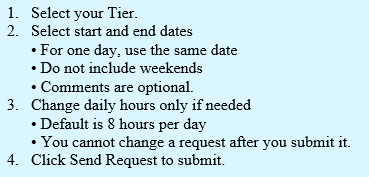
You can request past dates in PrismHR!
• Your manager must approve
• The change shows on your next paycheck.
Your Time Off Overview shows:
• Available balance
• Approved and scheduled time off
Important
• Plan PTO in the current year
• Talk to your manager about next year requests
• Enter next year time after January when balance updates
New employees (prorated PTO):
• PTO is based on full months available in the year once benefits start
• Benefits start the first day of the month after 60 days.
Example:
Start date: January 5
Benefits start: April 1
PTO April to December: 9 days
Next January: 12 days
Tracking Your Request
Use the Overview screen to check status.
Before approval:
• You can send a reminder to your manager
• You can cancel your request.
After approval:
• You and your manager can cancel requests.
To change PTO dates:
• Cancel before approval
• Cancel or ask your manager to cancel after approval
• Submit a new request with correct dates.
No Available PTO, or using other leave types?
For unpaid leave, jury duty, or bereavement leave only:
Email requests to PTO@cvgco.com
• Send as soon as possible and copy your manager
• Include dates and supporting documentation
2026 Holidays
1. New Year’s Day
2. Memorial Day (observed May 25)
3. Independence Day (observed July 3)
4. Labor Day
5. Thanksgiving Day
6. Day After Thanksgiving
7. Christmas Eve
8. Christmas Day